
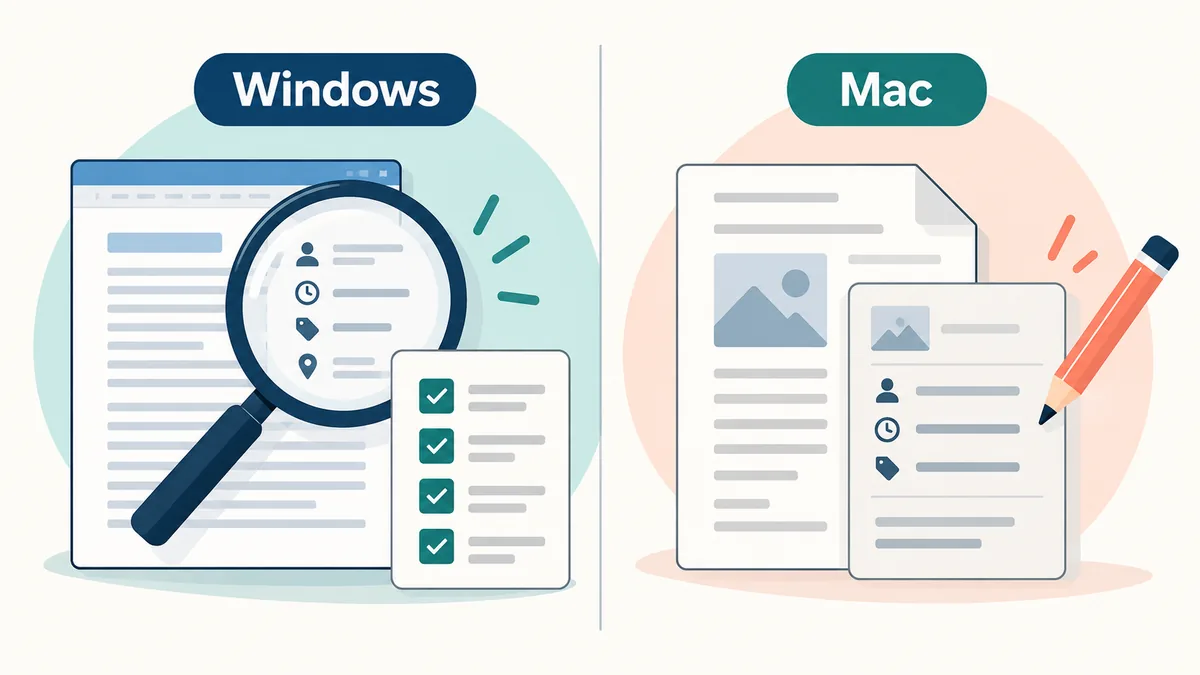
If you need to know how to remove metadata from Word, save a copy first. On Windows desktop Word, open File > Info > Check for Issues > Inspect Document, run the inspection, and choose Remove All for the findings you want to clear. On Mac, Word does not provide the same Document Inspector, so review File > Properties and remove personal fields manually. Word for the web is not a full cleanup environment. Reopen the copy and verify it before sending it.

What metadata does a Word document store?
A DOCX file is a package of XML parts, not just the words displayed on a page. Core properties can include the author, last person who saved the file, title, subject, keywords, creation time, modified time, and revision count. Office can also retain the company and manager associated with the installation, the template name, total editing time, and the application version. Those values are useful for a private document library, but they can expose a person, employer, workflow, or timeline when a file is sent outside the team.
Metadata is only one privacy layer. Comments, tracked changes, hidden text, watermarks, custom XML, and embedded images have their own paths. Removing an author field does not remove a name typed in a paragraph, a comment bubble, or GPS data inside a pasted photo. Treat the visible document and package data as separate review surfaces.
- Core properties: author, last saved by, dates, title, subject, keywords, and revision number.
- Extended properties: company, manager, template, application, version, and editing time.
- Collaboration data: comments, tracked changes, reviewer names, versions, and revision save IDs.
- Embedded content: images, linked files, headers, footers, watermarks, and custom XML.
How to remove metadata from Word on Windows
The Windows desktop workflow is the most complete built-in route for a normal DOCX. Microsoft recommends inspecting a copy because some removals cannot be restored with Undo. The wording varies between Office releases, but the File and Info path is broadly consistent.
Save the current file under a new name and decide whether comments or tracked changes are evidence that must be preserved. For a legal or editorial record, keep the original and note which categories you removed.
- 1. Save a working copyUse Save As and name the copy report-share-clean.docx. Keep the original protected so you can compare content later.
- 2. Open the inspection panelChoose File, then Info, then Check for Issues, and select Inspect Document. If Word asks whether to save, save the working copy first.
- 3. Select the checksReview comments and revisions, document properties and personal information, hidden text, headers and footers, and custom XML as needed.
- 4. Run InspectSelect Inspect and read each finding. The report shows checked areas; it does not prove that visible private information is gone.
- 5. Remove deliberatelyChoose Remove All beside the categories you are allowed to clear. If a category contains collaboration history you still need, do not remove it just to make the report look empty.
- 6. Save and inspect againSave, close, and reopen the copy, then run Document Inspector again. Recheck content, comments, revisions, headers, and embedded media.
The safest result is a verified copy, not a promise that the original can be reconstructed after every removal.
How to remove metadata from Word on Mac
Word for Mac does not expose the same Windows Document Inspector. Start with File > Properties and review the Summary and Custom areas. Delete or replace identity-bearing values such as author, company, manager, title, comments in custom properties, and other fields that your installed Word version exposes. Then save a copy and check the file again.
Properties are only one layer on macOS. Remove comments and tracked changes from Review, search for hidden text, and inspect headers, footers, watermarks, and sections. Clean sensitive photographs separately before inserting them again; DOCX property edits do not reliably rewrite embedded EXIF.
- Use a duplicate file before deleting properties or collaboration data.
- Review both Summary and Custom properties; the available fields depend on the file and Word version.
- Clean embedded photos with an image-specific workflow if their EXIF or GPS data matters.
What Word for the web can and cannot do
Word for the web is useful for editing and collaboration, but it is not a complete metadata removal environment. Microsoft directs users to open the file in the desktop app to view or change document properties. If a browser-only team cannot install desktop Word, download a copy, use an approved local workflow, and verify the resulting file before uploading it again.
A successful browser save is not a privacy review. A web editor can preserve comments, revisions, author details, and package properties even when the visible text looks correct.
| Environment | Best available route | Boundary |
|---|---|---|
| Windows desktop Word | Document Inspector plus a second inspection | Removal is category-based and may not touch visible text or embedded image metadata. |
| Mac desktop Word | Properties review plus manual comments, revisions, and content checks | There is no identical Windows Inspector; available fields vary by version. |
| Word for the web | Open a downloaded copy in a desktop or approved local workflow | Properties review and full cleanup are not available in the browser editor. |
What Word metadata removal does not guarantee
A clean Document Inspector report is useful evidence, but it is not a universal eraser. Word cannot remove a name in a signature block, a watermark still displayed, a screenshot containing a private email, a copy already sent, or server-side version history.
Embedded images deserve special attention. A phone photo can carry location, camera model, capture time, and editing fields. Clean the source photo with a format-aware image tool, confirm it, and replace the embedded copy when that risk matters.
- Visible text, signatures, screenshots, faces, watermarks, and filenames remain visible unless you edit or redact them.
- Comments and tracked changes can contain names and deleted text; handle them as collaboration content, not just properties.
- Embedded photos can retain EXIF or GPS fields even after DOCX properties are cleaned.
- Cloud revision history and copies already shared are outside a local DOCX cleanup.
Use precise language such as recognized properties removed or comments reviewed. Avoid claiming that every hidden byte or every AI label has been erased.
A practical verification checklist before sharing
Verification catches mistakes a one-click removal can miss. Open the copy in Word and check the file name, page count, layout, links, tables, images, accessibility text, and tracked-change state. For sensitive files, ask a second person to inspect an isolated copy.
Record the source and copy names, platform, categories removed, and check date so the team can reproduce the handoff.
- Content checkRead the title page, headers, footers, comments, tracked changes, captions, and appendices for names or confidential text that metadata tools cannot remove.
- File checkOpen File > Info and the properties view again. Confirm that the author, company, dates, custom fields, and revision details match your sharing policy.
- Media checkOpen embedded photos or export them temporarily to inspect their metadata. Replace a photo if its GPS, camera, or editing history should not travel with the document.
- Recipient checkReview the destination service's sharing and history settings; a clean local file can still be copied or logged there.
When a local browser cleaner is useful
For people asking how to remove metadata from Word without installing another application, a browser-based cleaner can be convenient. The important question is scope: does it read the file in browser memory, which XML parts does it recognize, and what does it leave alone? A responsible tool should say whether comments, revisions, custom XML, embedded images, or unknown vendor fields are outside its guarantee.
Our Remove Metadata project processes supported files locally in the browser and states its limits. For tracked legal revisions, confidential media, or regulated records, use the approved desktop process and keep the original.
- Use a local tool for a routine copy when its supported DOCX scope is documented.
- Do not upload a sensitive file to a service until you understand retention, logging, and third-party processing.
- Prefer the desktop Inspector for complex collaboration history, then verify the output independently.
Sources and platform notes
The Windows workflow below follows Microsoft's current support guidance. Platform menus can move between Office releases, so use the labels you see in your installed version and keep an untouched original.
- Microsoft Support: Inspect documents for hidden dataOfficial guidance for opening Document Inspector, the categories it can find, and the warning that removals may not be undoable.
- Microsoft Support: Inspect Document overviewOfficial reference for the desktop inspection workflow and the difference between Windows and Mac capabilities.
Word metadata questions
How to remove metadata from Word without deleting the text?
Usually, yes, when you remove recognized document properties. Work on a copy and review the output because the Inspector can also find comments, revisions, hidden text, and custom XML that may contain content you still need.
Does Word for Mac have Document Inspector?
Word for Mac does not provide the same Windows Document Inspector. Review File > Properties, clean comments and revisions separately, and inspect the visible document and embedded media before sharing.
Does Word for the web remove author and revision metadata?
Word for the web is not a full metadata cleanup environment. Download a copy and open it in desktop Word or an approved local workflow when you need to inspect or change document properties.
Will removing Word metadata clean photos inside the document?
Not reliably. Embedded photos can retain their own EXIF or GPS fields. Clean a sensitive photo separately, verify it, and replace the embedded image if that data matters.
Is a metadata-free Word document anonymous?
No. Metadata cleanup does not erase names written in the document, network logs, cloud version history, copies already sent, or information collected by the destination service. It reduces recognized file-level data within a defined scope.
Our local file cleaner is designed for supported formats and does not upload file contents for cleaning. Read the limits before using it for an important document.
Open the local metadata cleaner