

What is EXIF data? It is structured information stored in an image file alongside its visible pixels. A camera may record its model, exposure settings, orientation, date and, if enabled, GPS coordinates. These fields help organize photos, but they may be missing, changed or removed; they are not proof of when or where an image was made. Inspect the exact copy you plan to share, since a preview, original and delivered download can differ.
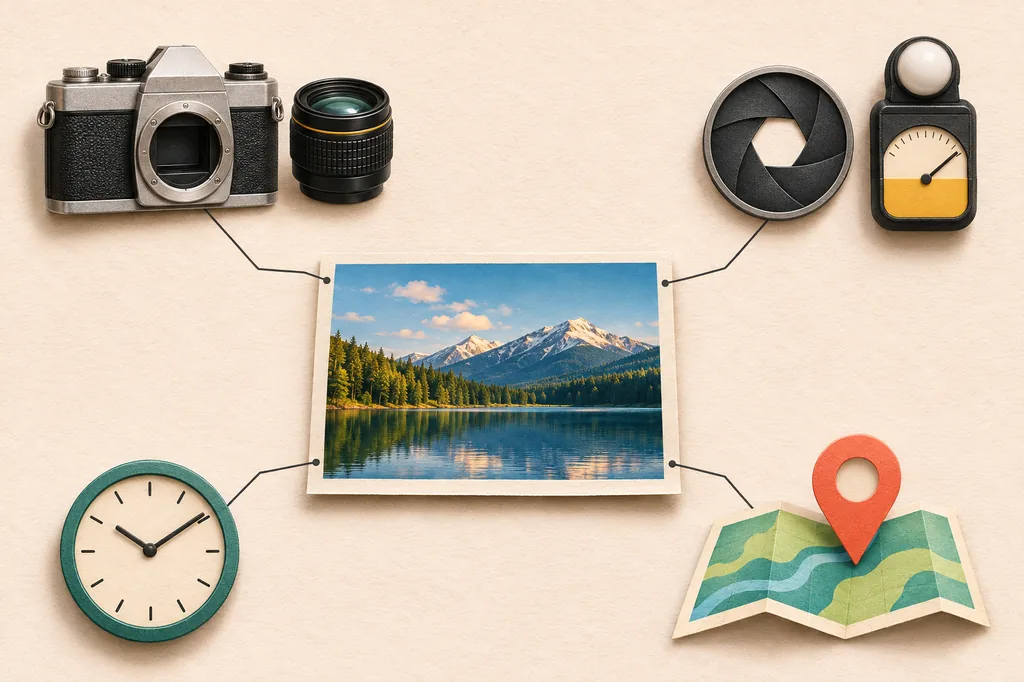
What EXIF data can contain
EXIF stands for Exchangeable Image File Format, a standard for technical and capture details associated with digital images. People sometimes use the word for all photo metadata, though IPTC, XMP and software can add other information. Devices record only supported, enabled fields, and later editing or export may change them.
Fields commonly describe the device, exposure, time, location or orientation. Some files also contain a thumbnail, software name or copyright text. The examples below are possibilities, not a guarantee about every image.
- GPS appears only when recorded by the device or added later.
- Viewers may rename technical tags; a missing field may simply be hidden by that viewer.
| Field group | Examples | Why someone might inspect it |
|---|---|---|
| Device | Make, model, lens | Identify the equipment used or sort a camera archive. |
| Capture settings | Exposure time, aperture, ISO, focal length | Understand how a photograph was exposed or compare shots. |
| Time | Original capture date, time zone or offset | Organize a library; check whether a device clock was set correctly. |
| Location | Latitude, longitude, altitude, direction | Find a place in a personal archive; assess location disclosure before sharing. |
| Image handling | Orientation, software, color-related fields | Display the image correctly or understand one part of its editing history. |
Why EXIF fields matter for organization and privacy
Photo apps use EXIF to sort by date or camera, and exposure settings help compare a series. The fields may be inaccurate: a device clock can be wrong, location permission may be off, or export software may change a timestamp.
An original file can also disclose context. GPS may identify a private place, while time and device details can add clues. Not every photo has precise location data; what appears depends on settings, file history and the copy a recipient gets.
- Review sensitive locations and inspect the actual file sent; previews can differ from downloads.
A single tag is one uncertain data point, not a complete account of a person or event.
EXIF is not the only kind of photo metadata
EXIF usually describes capture and device details. IPTC often holds captions, creator or rights information; XMP can store descriptive and editing properties. Color profiles affect color interpretation. These families may coexist, even when a viewer groups them together.
No GPS value does not mean the file has no other metadata. A color profile is not a location tag and can affect appearance. When cleaning a photo, check which structures the tool recognizes and inspect its output; one status message is not a complete inventory.
| Family | Common role | Practical question |
|---|---|---|
| EXIF | Camera, exposure, date, orientation and optional GPS | Which capture fields are present in this copy? |
| IPTC | Caption, creator, rights or editorial description | Does the file carry a name or rights note? |
| XMP | Application and workflow properties | Did an editor add descriptive or history-related values? |
| Color profile | How colors should be interpreted | Could removing this change how the image looks? |
How to inspect EXIF data in a photo
A file-properties panel may show a few fields; a dedicated viewer can list more tags. Before using an unfamiliar app on a sensitive photo, check its permissions and whether it sends files to a service.
Keep the original and inspect a copy with a trusted viewer. Check GPS, time, device and descriptive fields. For an unfamiliar tag, use its exact name with a reliable reference; the viewer reports stored values but cannot prove they are accurate.
- 1. Select the fileInspect the original or the copy you plan to send, not just a thumbnail.
- 2. Choose a viewerUse a trusted system app or a reputable inspector with clear privacy practices.
- 3. Check relevant tagsReview GPS, time, device and creator fields; note what is absent or not displayed.
- 4. Verify any new copyReopen the saved output and check the same fields and image appearance.
Reduce location disclosure at capture and sharing time
Review the camera app's location permission before new captures if you do not need geotags. Controls vary by device, and changing one does not remove GPS from existing photos.
For an existing image, check the sharing controls and the file the recipient can download. Previews, messages and original-file transfers may differ. For a sensitive share, make a copy, remove recognized fields you do not need, then inspect it.
- Change location settings for future captures; handle older files separately.
- Check the actual sharing route and keep an untouched original when needed.
What EXIF data cannot prove
EXIF is descriptive data, not a tamper-proof certificate. Values can be edited, copied, lost in conversion or written incorrectly. Clock and GPS accuracy also vary, so a tag alone cannot establish that its value is true.
An empty EXIF panel does not show that a photo never had metadata: one service copy may be stripped while another retains fields. Tags also cannot hide visible faces, signs or rooms. For high-stakes authenticity questions, preserve originals and use a qualified process that checks provenance and other evidence.
- A tag is not standalone proof, and removing file metadata does not redact visible image content.
This guide is not a forensic procedure or a guarantee of anonymity.

Technical references and reporting
EXIF fields vary by camera, file format and software. These references document the tag families and standard; the examples below explain common uses without treating metadata as proof of a photo's history.
- ExifTool: EXIF Tag NamesA maintained reference listing EXIF and related image tags.
- ExifTool: GPS Tag NamesReference for location-related EXIF tag names and values.
- CIPA: Exchangeable Image File Format specificationThe camera industry association's EXIF specification download page.
- Consumer Reports: What You Need to Know About Exif DataConsumer privacy reporting on the information that photo files can carry.
EXIF data questions
What is EXIF data in a photo?
EXIF is structured information stored with an image file. Depending on the camera, settings and file history, it may include device, capture, time, orientation or GPS fields.
Can EXIF data show where a photo was taken?
It can include GPS coordinates when location recording was enabled or values were added later. A missing GPS field does not establish where the photo was taken.
Does every picture contain EXIF data?
No. Cameras and software write different fields, and editing, export or upload steps may alter or remove some data. Inspect the exact file you have.
Is EXIF data proof that a photo is authentic?
No. EXIF values can be edited, copied, lost or written incorrectly. They can provide context but are not tamper-proof evidence of authorship, time or place.
Does removing EXIF remove everything hidden in an image?
Not necessarily. Other metadata families, color profiles or unknown structures may remain, and visible content such as faces or text is not removed by tag cleanup.
Use the image cleaner to create a separate copy with supported metadata structures removed. Review its format limits, then inspect the downloaded file if a particular field matters.
Open the image metadata cleaner